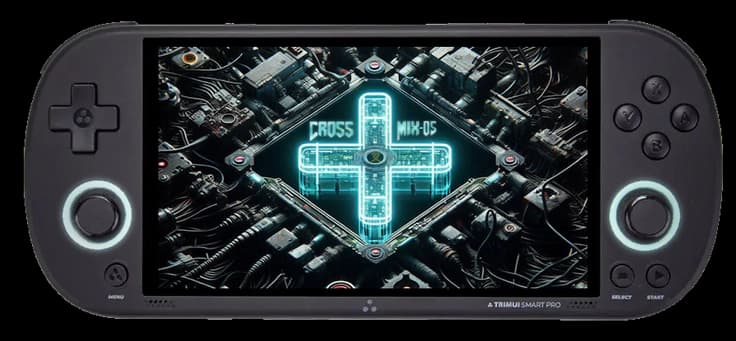
What is CrossMix OS?
CrossMix OS is custom firmware for retro handhelds. It combines a fast interface with broad compatibility and extra functions for a pleasant retro experience. CrossMix OS is especially popular on the TrimUI Smart Pro.
This guide describes how to install CrossMix OS with macOS on a microSD card.
What you need
A microSD card of at least 8 GB; 64 GB or more is recommended
An SD card reader or microSD adapter
BIOS files for systems that need them
Your own ROM collection
Step 1: Format the microSD card
Insert the microSD card into your Mac with a card reader.
Open Finder and select the card in the left sidebar.
Right-click the card and choose Erase (Erase).
Under Scheme (Format) choose MS-DOS (FAT).
You can name the card
CROSSMIX.Leave the scheme unchanged if macOS has selected it automatically.
Confirm and wait for the format to finish.
Note: formatting removes the existing contents of the microSD card. Make a backup first of any files you want to keep.
Step 2: Install CrossMix OS
Open the CrossMix OS releases on GitHub.
At the latest release, download the ZIP file, for example
CrossMix-OS_v1.x.x.zip.Unzip the ZIP file.
Copy or unpack the files directly onto the formatted microSD card.
Step 3: Add your games
Unpack your own ROM files and place them in the correct system folders on the microSD card. Examples:
NESfor Nintendo Entertainment SystemGBAfor Game Boy AdvancePSPfor PlayStation Portable
Some folder names may differ from those of the stock operating system. Examples are PSP OPERA for PPSSPP and PICO for Panasonic Pico- and Pico-8 content.
Use only ROMs for which you have the necessary rights. For legal homebrew and indie games, for example, you can have a look at itch.io.
Step 4: Start CrossMix OS
Insert the microSD card into the TrimUI Smart Pro.
Turn on the handheld.
Be patient during the first start-up. CrossMix OS initialises PortMaster and other required components, among other things.
Done
CrossMix OS is now installed on your TrimUI Smart Pro. You can further set up the interface, emulators and ROM folders as you like.